
How to manage X3 deployments
Once a deployment has been provisioned in the X3 Cloud portal, partners can access and manage it using the Log me in feature. This allows admin users to log directly into the deployment environment.
Only Admin users have access to the Log me in feature.
First login
-
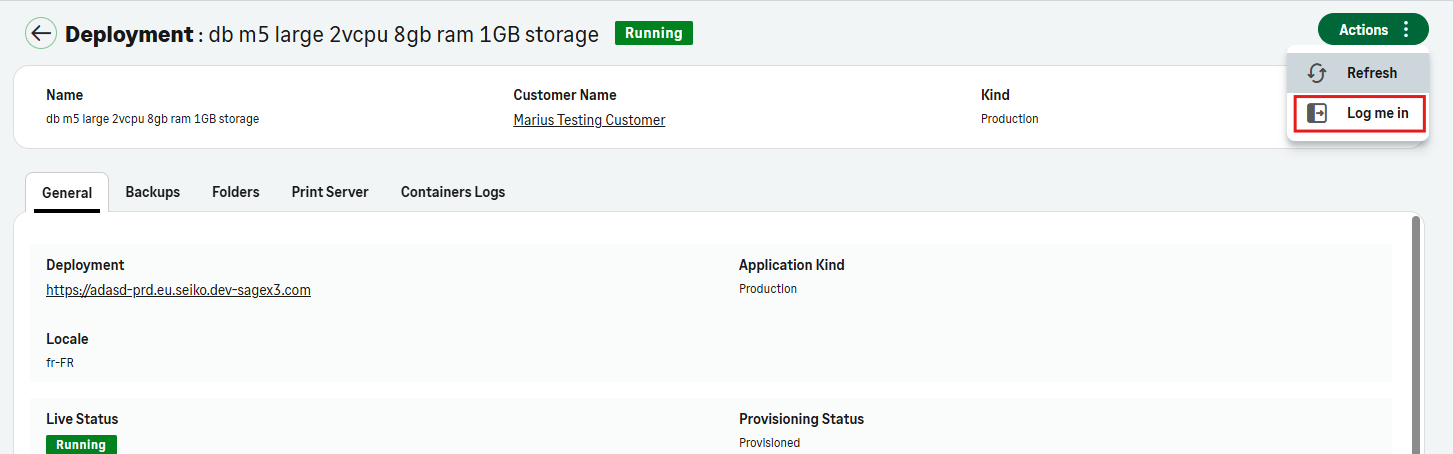
In the Partner Portal, open a deployment page (Deployments > select a deployment from the list).
-
Select Actions > Log me in.
-
Select Use your Sage account to log in. This will automatically log you in with the email address you used to access the portal.
-
The Sage X3 deployment page opens. You can log into the X3 deployment with the SageId account you are using to access the X3 Cloud portal portal.
You are now logged into the deployment environment. You can follow the progression of the deployments in the Deployments and the Operations pages.
Only one session can be active at a time using this feature. If a second user attempts to connect, a message will indicate that another session is already active.
If the first user wants to reconnect, they will have to go through the Log me in process again.
Deployment URL
You can find the URL for your deployment in the General tab of your deployment. 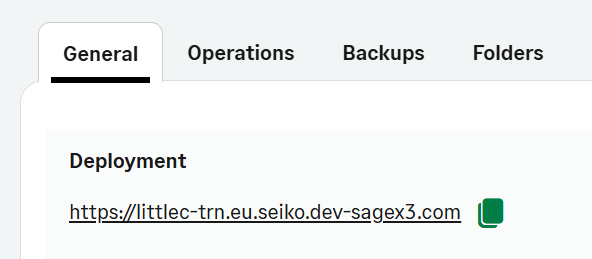
Deployments URLs cannot be manually edited. They are automatically generated using the following structure:
-
the customer short code
-
the environment type
-
prd (production)
-
sbx (sandbox)
-
trn (training)
-
-
a sequence number, added only when multiple deployments of the same environment type already exist for the customer.
-
the environment domain suffix.
Configuration
You can manage deployment-specific settings from the Configuration tab.
Configure node local settings
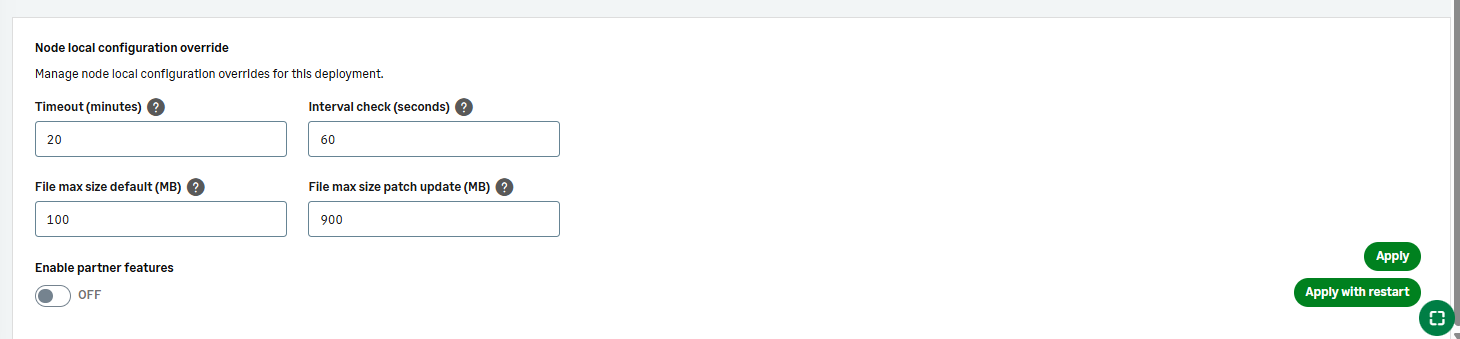
You can override selected node local settings for an individual deployment.
The available settings include:
-
File max size default (MB) to define the maximum size allowed for standard file uploads.
-
File max size patch update (MB) to define the maximum size allowed for patch uploads.
After you update these values, select Apply to save your changes or Apply with restart to apply the changes and restart the deployment services.
Hibernation
When a deployment is hibernated, all services are inactive, but the data and configuration are preserved. During hibernation, the deployment is not accessible. Any actions requiring the environment (login, API calls, reporting, integrations) will fail until the deployment is resumed.
Hibernation details
Automatic hibernation
Hibernation starts automatically at 2:00 AM.
Manual hibernation
A deployment may be suspended for 1, 2, or 5 days, depending on platform rules or current activity status.
You can suspend a deployment directly from the deployment page. To do so:
-
Go to the Deployments page.
-
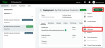
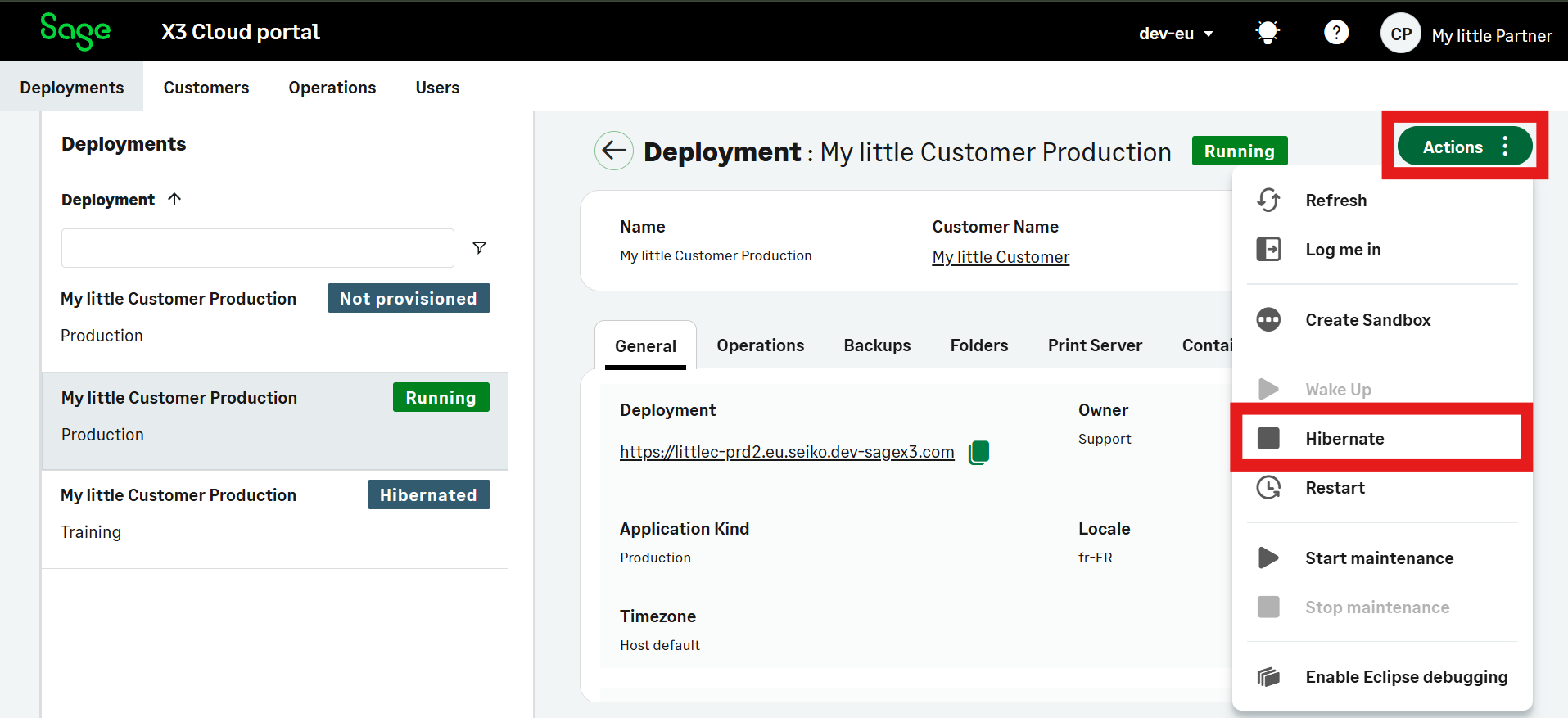
Select Actions .
-
Select Hibernate . A new window opens.
-
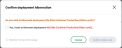
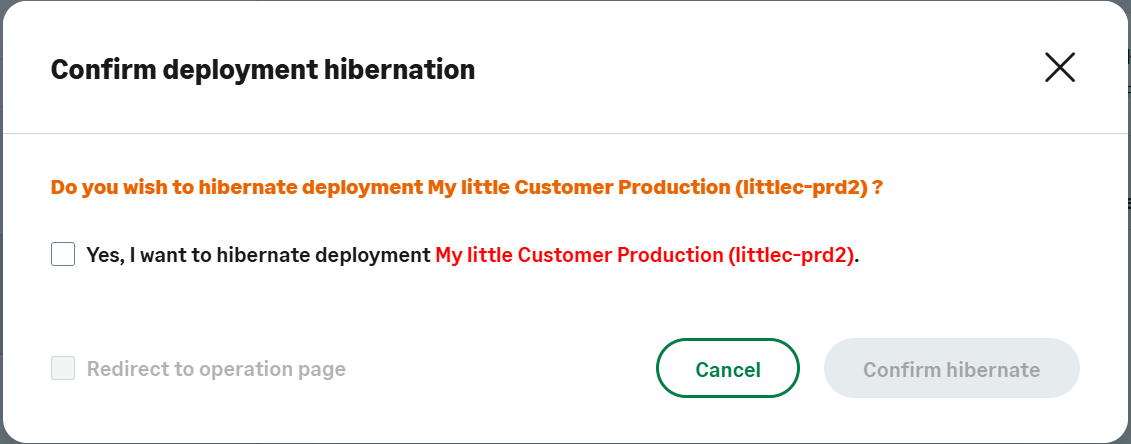
Check the "Yes, I want to hibernate deployment" box and Confirm hibernate.
Upcoming hibernation date
The next hibernation date is displayed on the deployment’s General tab.